Debian It is a free software-based operating system, widely recognized in the computing world. It was first released in 1993 and is maintained by a global community of developers and users who collaborate to maintain, improve, and distribute the system.
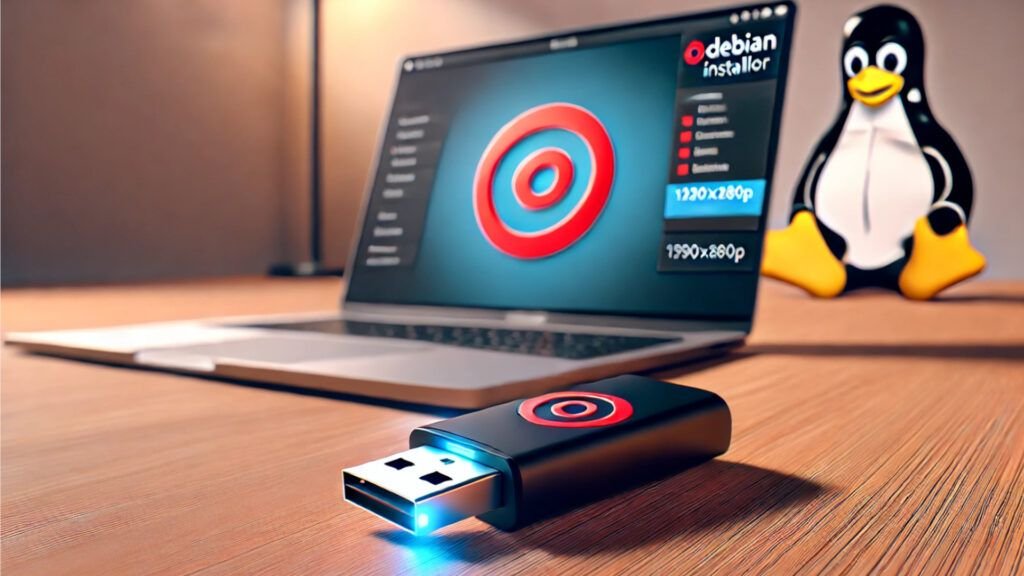
A Live USB on Debian It is a USB flash drive containing a fully functional version of the Debian operating system, designed to run directly from the USB, without the need to install anything on your computer's hard drive.
A USB Live and a USB Installer These are two types of USB flash drives used with operating systems like Debian, but they serve different purposes. Below, I'll explain each one in detail:
1. USB Live
It's a USB flash drive containing an executable version of the operating system that you can use directly from the device, without having to install it on your hard drive.
Main features:
- Direct execution: You can boot the operating system directly from the USB.
- It does not affect your system: : It does not make any changes to the hard drive unless you choose to use specific features such as “persistent mode”.
- Portable: You can use it on any computer that allows booting from USB.
- Complete environment: Includes a graphical desktop and basic tools for working.
Common uses:
- Test an operating system before installing it.
- Take a functional operating system anywhere.
- Troubleshoot damaged computers or corrupted operating systems.
- Educational or trial use without compromising the hardware.
ExampleWith Debian Live, you can try GNOME, KDE, or XFCE without installing anything on your hard drive.
2. USB Installer
It is a USB created specifically to install an operating system on a computer's hard drive.
Main features:
- Designed for installation: Contains an installation program that guides the user through installing the operating system on a hard drive.
- Less functionality: It is not intended to be used as a portable operating system, although in some cases it offers a limited trial option.
- Internet connection (optional): : May require a connection to download necessary packages during installation (as in “Netinstall” versions).
Common uses:
- Install the operating system on a new or formatted computer.
- Configure an operating system in custom mode (choose partitions, software, etc.).
Why install Debian?
- GNU/Linux distributionDebian is one of the oldest and most stable Linux distributions. There are also versions that use other kernels, such as Hurd or BSD.
- Free and open source:
• Free: You can download, install, use, and share Debian without any cost or proprietary licensing issues.
• Open source: The source code is available, allowing users to modify and redistribute the system according to their needs. - Package management: It uses an advanced system called APT (Advanced Package Tool) to easily install, update, and manage software. The packages are in the format .deb.
- Stability and securityDebian is known for its stability, ideal for servers and mission-critical environments. Developers conduct extensive testing before releasing new versions.
- Extensive software library: It has more than 59,000 packages available, covering desktop, server and development applications.
- Active communityThousands of volunteers contribute to development, documentation, and technical support.
Is everything free in Debian?
Yeah, Everything included in Debian is free, as it follows free software guidelines. However, it also allows the use of non-free software (such as drivers or specific applications) through additional repositories, if the user chooses to install them.
I'll explain step by step how you can view, test, and use Debian, from downloading the ISO to creating a Live USB to install it.
1. Types of Debian ISOs and download ISO
On the official Debian website, you can find different types of ISO images depending on your needs:
- DVD ISO:
• Contains a large number of software packages so you can install it offline.
• Ideal if you don't have constant access to the Internet. - CD ISO:
• Similar to DVD, but with less software included.
• Requires an Internet connection to complete installation. - Netinstall ISO:
• It is a minimal installer (approximately 300 MB).
• Download the necessary packages from the Internet during installation. - Live ISO:
• Allows you to try Debian without installing it on your hard drive.
• Includes desktop environments such as GNOME, KDE, XFCE or LXDE. - Download the Debian ISO: Go to the official Debian download page:
👉 Debian – Download ISO images - Select:
• Your architecture: Normally «amd64» for modern PCs.
• ISO type: Netinstall, DVD, CD or Live.
• Desktop environment (in case of Live): GNOME, KDE, XFCE, etc. - Download the ISO in:
3. Create a USB installer or Live with Debian
You will need:
- A USB flash drive (minimum 4 GB, recommended 8 GB).
- Software to create Live USB.
On Windows:
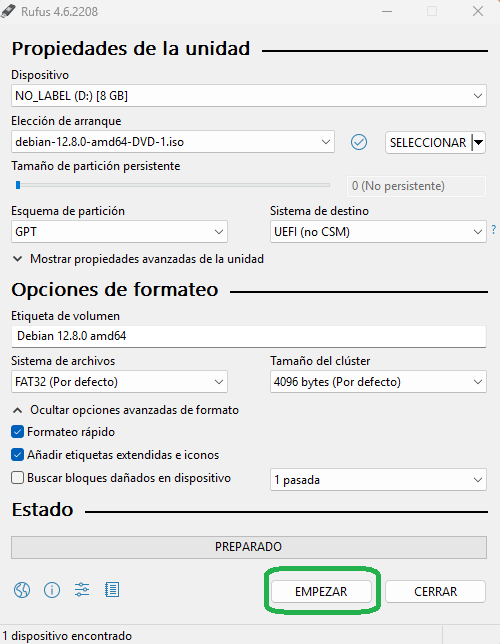
- Download a tool like Rufus:
👉 Rufus - Insert your USB drive and open Rufus.
- Select:
- USB device: Your memory.
- ISO: The downloaded Debian image.
- File system: Leave it as is (FAT32 or NTFS).
- In Partition scheme, select MBR for legacy BIOS or GPT for UEFI.
- Click on StartThis will format the USB and copy the ISO.
On Linux:
- Open a terminal.
- Use the command dd To create the Live USB:
$ sudo dd bs=4M if=/ruta/a/la/iso/debian.iso of=/dev/sdX status=progress oflag=sync
- Replaces /path/to/the/iso/debian.iso with the location of your ISO.
- Replaces /dev/sdX with the path of your USB (you can find it with the command lsblk).
On macOS:
- Use the dd command in a similar way to Linux.
- You can also use graphical tools like Etcher:
👉 Balena Etcher

Summary between USB Live and USB Installer
| Feature | USB Live | USB Installer |
|---|---|---|
| Main use | Test and use the operating system. | Install the operating system. |
| Requires installation | No. It is used directly from the USB. | Yes. It is necessary to install the system. |
| Graphical environment | Includes full desk. | Generally, it does not include a desk. |
| Persistence | You can save data in persistent mode. | It doesn't save data; it just installs. |
4. Try Debian (Live Mode)
- Insert the USB into your computer.
- Reboot and enter the boot menu (usually by pressing F12, Esc, F2, or similar).
- Select your USB flash drive as the boot device.
- Debian Live will boot. From here you can test the system without installing it.
5. Install Debian from USB
- In the Live environment, click on Install Debian.
- Follow the installation wizard, choosing:
- Language and time zone.
- Installation disk (you can choose partitions manually or let Debian do it automatically).
- Desktop environment (GNOME, KDE, etc.).
- Once the installation is complete, reboot and you're done!
Conclusion
A Debian USB is a versatile tool that allows you to experiment with the operating system safely and comfortably. If you want to explore Debian safely, the Live USB is ideal. If you're ready for a change, the USB Installer makes it easy to install a powerful, secure, and free operating system.
Debian, with its flexibility and stability, is an excellent choice for both new and experienced users.

Descubre más desde javiercachon.com
Subscribe to get the latest posts sent to your email.