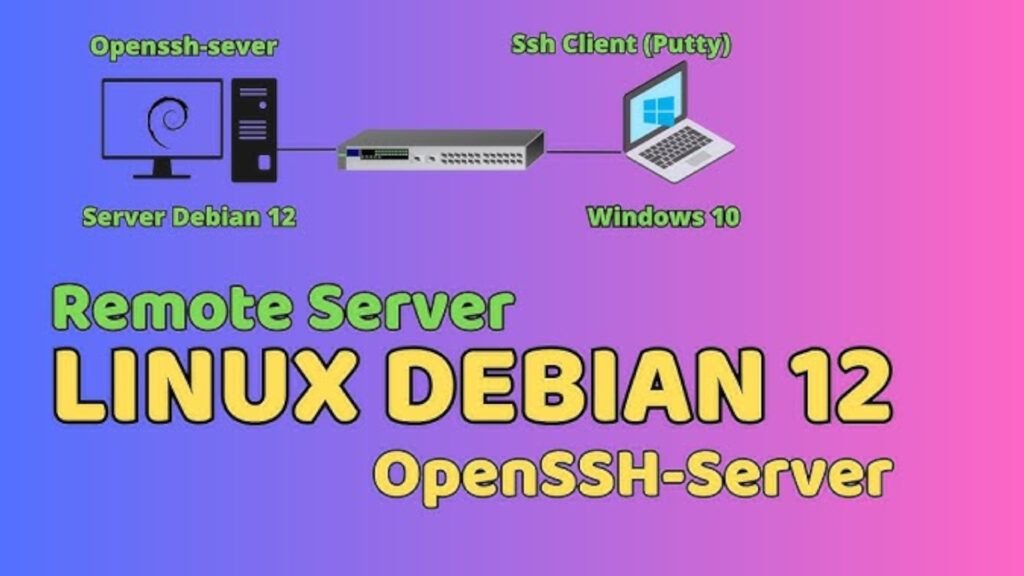
What is SSH?
SSH (Secure Shell) is a network protocol that allows users to securely connect to other systems over an unsecured network. It provides:
- Secure authentication (usually using passwords or keys).
- Data encryption, preventing information from being intercepted.
- Remote access to systems and the ability to run commands as if you were on the remote computer.
What is OpenSSH?
OpenSSH is a free and open-source implementation of the SSH protocol. It is widely used on Unix/Linux systems for secure connections between computers.
OpenSSH Server and OpenSSH Client
- OpenSSH Server: Allows other computers to remotely connect to the system where it's installed. This is the component that receives SSH connections.
- OpenSSH Client: It is the program used to initiate a remote connection from your computer to another system that has an SSH server configured.
OpenSSH Features
- Strong encryption: Uses modern encryption algorithms such as AES, ChaCha20, and RSA.
- Secure authentication: Supports passwords, SSH keys, and advanced methods like two-factor authentication.
- Safe tunnels: Supports TCP/IP tunneling and port forwarding to securely access internal services.
- Wide compatibility: Works on a variety of platforms, including Linux, Windows, and macOS.
- Extensibility: Supports additional modules and customization.
- Integrated tools: As
scpandsftpto transfer files securely.
Advantages of OpenSSH
- Enhanced security: Secures remote connections using encryption.
- Light and efficient: Requires few system resources.
- Free and open source: No licensing costs.
- Multipurpose: Remote connection, file transfer and port forwarding.
- Flexible configuration: You can customize it according to your needs.
Setting up a server SSH in an environment LAMP (Linux, Apache, MySQL, PHP) involves installing and configuring SSH along with the LAMP stack on a Linux system.
Installing OpenSSH on Debian 12
Installing OpenSSH Server on Debian 12
Install the OpenSSH server package
Run the following command to install the OpenSSH server:
$ sudo apt install openssh-server
Check the status of the SSH server
After installation, verify that the service is active:
$ sudo systemctl status ssh
If it is working, it should show a status like active (running).
If it is not active, you can start it:
$ sudo systemctl start ssh
Enable the service at system startup
To ensure that the SSH service starts automatically every time you power on your system:
$ sudo systemctl enable ssh
Install OpenSSH Client on Debian 12
The SSH client is usually installed by default in Debian. To ensure it's available:
- Install the SSH client (if not installed)
$ sudo apt install openssh-client
Basic OpenSSH Configuration
- Configuration file
The main SSH server configuration file is:
/etc/ssh/sshd_config
Some common configurations:
- Service port (default is 22): Change the port for greater security:
Port 2222
- Allow or deny root access: It is recommended to disable root access to improve security:
PermitRootLogin no
- Use key authentication instead of passwords: Configure this by adding:
PasswordAuthentication no
PubkeyAuthentication yes
Make sure you set up public keys before disabling passwords.
Restart the SSH service to apply the changes:
$ sudo systemctl restart ssh
With this, you have set up public key authentication!
- Configure public keys
Setting up public keys for SSH authentication in Debian 12 involves generating a key pair (public and private) on the client and then transferring the public key to the server. This eliminates the need for passwords to log in and increases security.
On the client (your local computer)
1. Generate an SSH key pair
Open a terminal and run the command:
$ ssh-keygen -t rsa -b 4096
-t rsa: Specifies the key type (RSA in this case).-b 4096: Defines the key size in bits for added security.
The system will ask you for a location to save the keys. Press Enter to use the default location (~/.ssh/id_rsa).
You can also set a optional password to protect the private key.
Verify the generated keys
The above command creates two files in the directory ~/.ssh/:
id_rsa: Your private key (keep it safe and don't share it).id_rsa.pub: Your public key (shared with the server).
On the SSH server
1. Copy the public key to the server
Use the command ssh-copy-id To transfer your public key to the server:
$ ssh-copy-id usuario@ip_del_servidor
Replaces usuario with your username on the server and ip_del_servidor with the server's IP address or hostname. This command:
- It will ask you for the user's password.
- It will automatically add your public key to the file
~/.ssh/authorized_keyson the server.
Configure correct permissions on the server
Make sure the permissions on the server are correct:
$ chmod 700 ~/.ssh
$ chmod 600 ~/.ssh/authorized_keys
Additional security (optional)
- Set up a firewall to allow only necessary connections
$ sudo apt install ufw
$ sudo ufw allow 2222/tcp
$ sudo ufw allow 80/tcp
$ sudo ufw allow 443/tcp
$ sudo ufw enable
With this, your server LAMP will be securely accessible through SSH.
To find out the IP address or server name in Debian 12
Find out the server IP in Debian 12
$ ip a
This will display a list of network interfaces with their respective IP addresses. Look for the address under the active interface section, such as eth0, ens33 either wlan0.
Wear hostname -I
This command returns only the IP addresses assigned to the server:
$ hostname -I
Know the public IP (if the server is connected to the Internet)
If the server has internet access, use this command to get the public IP:
$ curl ifconfig.me
This will show the public IP from which the server is accessible from the internet.
Know the server name (hostname)
a) Display the server name
$ hostname
This will return the server name (for example, mi-servidor).
Check the LAMP and SSH environment.
From the client, try to connect to the server:
$ ssh usuario@ip_del_servidor
$ ssh javier02@direccionIPServer
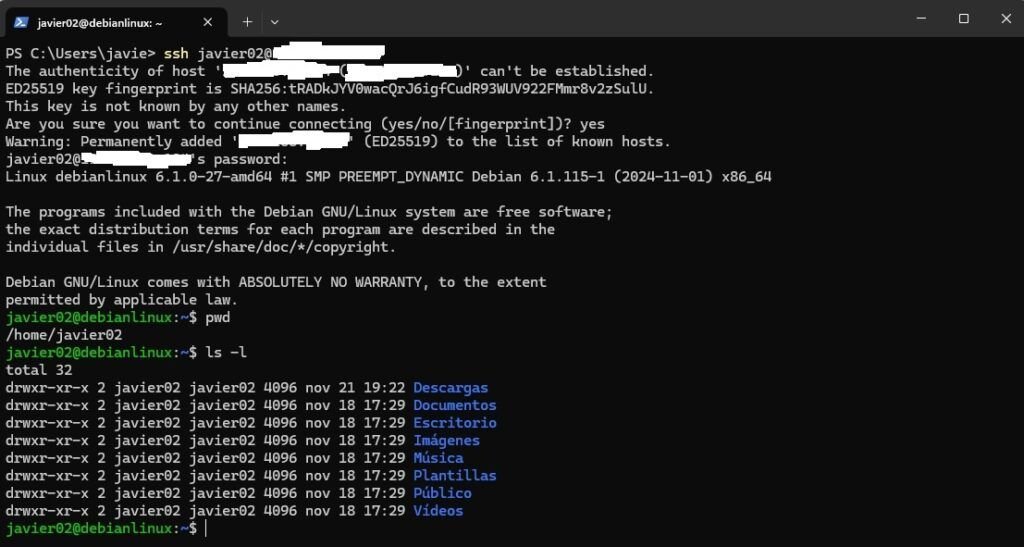
If everything is set up correctly, you won't be prompted for a password, and authentication will be automatic.
Access the web server with a browser:
http://<IP_DEL_SERVIDOR>

Conclusion
OpenSSH It is an essential tool for securely accessing and managing servers remotely. It provides an encrypted channel that protects against interception and third-party attacks, making it ideal for managing servers on public or private networks. Its flexibility in allowing advanced configurations such as public key authentication, SSH tunneling, and port forwarding make it a robust and widely used solution.

Descubre más desde javiercachon.com
Subscribe to get the latest posts sent to your email.