Debian Linux It is a free and open-source operating system based on the Linux kernel, developed by a global community of volunteers. It is one of the oldest and most respected Linux operating systems, known for its stability, security, and focus on the free software philosophy.
This post-installation will be very conservative. Let's configure and get your Debian 12 ready with XFCE! I'll provide you with a basic guide to configure the system and optimize it for general use, focused on optimizing and customizing the system for practical and efficient use.
Enable sudo on the system
In Debian, configure sudo It's a simple task that allows a user to run commands with administrative privileges. Here are the detailed steps to enable and configure sudo:
Install sudo as root:
$ su
# apt install sudo
# sudo --version
Add your user to the sudo group:
// Reemplaza user por su usuario en Debian.
# echo 'user ALL=(ALL) ALL' >> /etc/sudoers
# echo 'javier02 ALL=(ALL) ALL' >> /etc/sudoers
# exit
Verify that the user belongs to the sudo group:
$ groups javier02
With these steps, you will have configured sudo correctly on Debian.
Text editors nano and vim
Vim and Elder brother They are two widely used text editors on Linux systems, but they have very different approaches and features. Here I explain their main differences, uses, and features:
Nano: Simple Text Editor
Nano is an intuitive and easy-to-use text editor that comes pre-installed on most Linux distributions.
Main features of Nano:
Simplicity: It is ideal for beginner users.
User-friendly interface: Displays the most common keyboard shortcuts at the bottom of the screen (such as save, exit, cut, and paste).
No prior learning required: You can use it right away without reading a manual.
Basic commands in Nano:
| Action | Key combination |
|---|---|
| Save file | Ctrl + O |
| Go out | Ctrl + X |
| Cut text | Ctrl + K |
| Paste text | Ctrl + U |
| Search for text | Ctrl + W |
Vim: Advanced Text Editor
Vim is a text editor powerful and highly configurable, but it has a steeper learning curve. It's designed for advanced users or those who want to take full advantage of the text editing capabilities.
Main features of Vim:
- Modes of operation: It has different modes (normal, insert, command) to perform specific tasks.
- Highly efficient: Once you master Vim, you can edit text extremely quickly.
- Configurability: You can customize it using configuration files (
~/.vimrc). - Widely used in programming: It is popular among developers for its advanced tools.
Modes in Vim:
- Normal mode: This is the default mode when you open Vim. It allows you to navigate and execute commands.
- Insertion mode: Used to write or edit text. Activated by pressing
i. - Command mode: Allows you to run advanced commands by typing
:.
Basic commands in Vim:
| Action | Command |
|---|---|
| Enter insert mode | i |
| Save file | :w |
| Go out | :q |
| Save and Exit | :wq |
| Exit without saving | :q! |
| Search for text | /texto |
| Replace text | :s/viejo/nuevo/g |
Which one to use?
- Use Nano if:
- Are you a beginner or just need to make quick edits?
- You prefer a simple and straightforward interface.
- Use Vim if:
- You're looking for a powerful editor for complex tasks or programming projects.
- You want to customize your editing environment.
Both are useful tools. Elder brother It is more accessible to start, but to learn Vim It can be a great investment if you work a lot with the terminal. Choose the one that best suits your needs!
Install nano and vim on the system
$ sudo apt install nano
$ nano --version
$ sudo apt install vim
$ vim --version
Official Debian 12 repositories.

Setting up repositories in Debian is an essential part of ensuring you have access to the packages and updates you need. Debian repositories are servers that contain collections of software packages organized so they can be easily downloaded and installed on your Debian system. These repositories are essential for managing applications, updates, and dependencies in the operating system.
How repositories work
- Package index:
- When running
sudo apt update, the system downloads a list of available packages from the repositories configured in the file/etc/apt/sources.list.
- When running
- Software Installation:
- When you use
sudo apt install paquete, the system searches for the package in the defined repositories, downloads it and installs it automatically.
- When you use
- Dependency management:
- If a program needs other packages to run, the system also downloads them from the repositories.
Advantages of repositories
- Security:
- Packages in the official repositories are digitally signed and safe to install.
- Stability:
- Debian repositories guarantee that packages have been extensively tested to ensure stability.
- Ease of use:
- You don't need to search the internet for software; everything you need is in the repositories.
Types of repositories in Debian
Repositories in Debian are divided into categories, depending on the nature of the software they contain:
| Category | Description |
|---|---|
| main | Contains only free software approved by the Debian Framework (DFSG). |
| contrib | Free software that depends on non-free components. |
| non-free | Software that does not comply with the Debian guidelines (proprietary software). |
| non-free-firmware | Proprietary firmware required for certain devices. |
Install utilities to manage repositories
Packages required for repository administration and management:
$ sudo apt install curl wget apt-transport-https dirmngr gnupg
Where are the repositories in Debian?
Repositories are configured in the file: /etc/apt/sources.list
Basic repository configuration for Debian 12
Here's a basic and complete repository setup for Debian 12, including the main, patch, and security repositories.
$ sudo nano /etc/apt/sources.list
#------------------------------------------------------------------------------#
#                   OFFICIAL DEBIAN REPOS Estándar para Debian 12.
#------------------------------------------------------------------------------#
###### Debian Main Repos
## Repos Estable
deb http://ftp.es.debian.org/debian/ stable main contrib non-free non-free-firmware
# deb-src http://ftp.es.debian.org/debian/ stable main contrib non-free non-free-firmware
## Repos Updates
deb http://ftp.es.debian.org/debian/ stable-updates main contrib non-free non-free-firmware
# deb-src http://ftp.es.debian.org/debian/ stable-updates main contrib non-free non-free-firmware
## Repos Security
deb http://security.debian.org/debian-security/ stable-security main contrib non-free non-free-firmware
# deb-src http://security.debian.org/debian-security/ stable-security main contrib non-free non-free-firmware
Using repositories Backports and Repo Update Beta
The Backports These are repositories in Debian that contain newer versions of packages that aren't available in the stable version, but have been adapted to be compatible with it. They are useful if you need updated software without compromising system stability. They are configured in the path /etc/apt/sources.list
## Repos Backports:
# Paquetes tomados de la próxima versión de la distribución inestable de Debian, llamada "testing" e "unstable",¡Use con cuidado!
deb  http://ftp.es.debian.org/debian stable-backports main contrib non-free non-free-firmware
# deb-src  http://ftp.es.debian.org/debian stable-backports main contrib non-free non-free-firmware
## Repo Update Beta: Updates propuestas para Debian estable 12
deb  http://ftp.es.debian.org/debian/ bookworm-proposed-updates main contrib non-free non-free-firmware
Configuring the Debian Multimedia Repository
If you need to add a third-party repository for multimedia software In Debian 12, one of the most popular and reliable is the Debian Multimedia repositoryThis repository provides packages related to audio, video, and other multimedia editing and playback tools that are not available in the official repositories. They are configured in the path /etc/apt/sources.list
#------------------------------------------------------------------------------#
#                      REPO  TERCEROS Debian Multimedia
#------------------------------------------------------------------------------#
### Debian Multimedia
deb https://www.deb-multimedia.org stable main non-free
After having added the necessary line in /etc/apt/sources.list, the first package you need to install is deb-multimedia-keyring.
$ wget https://www.deb-multimedia.org/pool/main/d/deb-multimedia-keyring/deb-multimedia-keyring_2024.9.1_all.deb && sudo dpkg -i deb-multimedia-keyring_2024.9.1_all.deb
Refresh the indexes from the repositories
Refresh the repositories in Debian to update the local package indexes to ensure that your system has the latest list of software available from the sources configured in the file. sources.list:
$ sudo apt-get update
Put x86 architecture in the repositories in case any application needs packages from the 32-bit repository.
If you're using a 64-bit version of Debian (amd64) but need to install packages or support for 32-bit applications (i386), you can enable the x86 architecture on your system. This is useful for proprietary software or emulators that run in 32-bit.
//Poner Arquitectura x86
$ sudo dpkg --add-architecture i386
$ sudo apt-get update
//Quitar arquitectura x86
$ sudo dpkg --remove-architecture i386
$ sudo apt-get update
Update the operating system completely.

A complete operating system upgrade in Debian 12 involves ensuring that all installed packages have the latest versions available in the configured repositories.
$ sudo apt-get update && sudo apt-get upgrade && sudo apt full-upgrade && sudo apt-get dist-upgrade
Clean the system
Once everything is updated, remove unnecessary packages and temporary files to free up disk space:
$ sudo apt autoremove
$ sudo apt autoclean
What does each command do?
autoremove: Removes packages that were installed as dependencies but are no longer needed.
autoclean: Delete files .deb old downloaded to the local cache.
Then we restart the operating system:
$ sudo reboot
Basic multimedia codecs.
In Debian 12, basic multimedia codecs are not automatically installed as they are in Ubuntu due to differences in proprietary or licensed software inclusion policies. However, you can easily install the codecs needed to play a wide range of audio and video formats.
Microsoft Fonts:
Microsoft fonts, such as Arial, Times New Roman, Verdana, and others, do not come preinstalled in Debian due to licensing restrictions. However, you can easily install them:
$ sudo apt install ttf-mscorefonts-installer
- Accept the license: During installation, a configuration dialog box will appear, prompting you to accept the Microsoft license agreement. Use the arrow keys to navigate and select "Accept."
- Verify the installation: Once installed, the fonts will be available to all applications on the system.
Replicate ubuntu-restricted-extras in Debian 12
The package ubuntu-restricted-extras On Ubuntu, it installs a collection of proprietary and restricted software, such as multimedia codecs, Microsoft fonts, and libraries required to play certain types of multimedia content. Debian doesn't have a direct equivalent with a single package, but you can replicate its functionality by installing the necessary packages manually or using additional repositories.
What does ubuntu-restricted-extras include?
- Multimedia codecs such as MP3, H.264, AAC, etc.
- Microsoft fonts (Arial, Times New Roman, etc.).
- Libraries required to play proprietary content.
$ sudo apt install ffmpeg libavcodec-extra gstreamer1.0-plugins-bad gstreamer1.0-plugins-ugly gstreamer1.0-libav libdvdcss2
DVD playback support with rpm.livna.org repository for CDs/DVDs/Blu-rays
$ sudo apt-get install libdvd-pkg && sudo dpkg-reconfigure libdvd-pkg
Java 8 JRE on Debian 12: A Guide for Non-Programmers.
Java It is a technology used to develop applications that make the web more interesting and useful. Java is not the same as JavaScript, which is a simple technology used to create web pages and runs only in the browser.
Get Java for Desktop Applications Version 8 Update 411, Release Date: April 16, 2024 https://www.java.com/en/download/
Create the directory /usr/java
$ sudo mkdir /usr/java
Move the binary file to storage .tar.gz to the current directory and unpack the tarball and install Java.
$ sudo tar zxvf jre-*-linux-x64.tar.gz -C /usr/java/
// Directorio java JRE
/usr/java/jre1.8.0_411
The Java files are installed in a directory called jre1.8.0_441 in the current directory. In this example, it has been installed in the directory /usr/java/jre1.8.0_441. Once the installation is complete, the word Finished will be displayed.
Delete the file .tar.gz if you want to save disk space.
$ sudo rm -r jre-8u441-linux-x64.tar.gz
Full firmware for Debian.

In Debian, for policy reasons, not all proprietary or non-free firmware required for certain hardware devices is included by default. However, it is possible to install the full firmware package to ensure proper support for hardware such as Wi-Fi cards, graphics drivers, or network adapters.
$ sudo apt install firmware-linux firmware-linux-nonfree firmware-misc-nonfree
Optional specific firmware for certain hardware devices:
// Wi-Fi:
$ sudo apt install firmware-iwlwifi
// AMD/ATI:
$ sudo apt install firmware-amd-graphics
// NVIDIA:
$ sudo apt install nvidia-driver
// Realtek (Ethernet y Wi-Fi):
$ sudo apt install firmware-Realtek
// Broadcom (Wi-Fi):
$ sudo apt install firmware-b43-installer
Intel or AMD processors Install the driver according to your processor architecture.
//Intel
$ sudo apt-get install intel-microcode
//AMD
$ sudo apt-get install amd64-microcode
Intel, AMD, and Nvidia graphics hardware. Free open-source GNU-Linux:
Nouveau is the open-source driver for NVIDIA graphics cards, developed by the community within the Mesa free software project. Its main objective is to offer a free alternative to NVIDIA's proprietary drivers.
$ sudo apt install xserver-xorg-video-nouveau
Table is a collection of open-source graphics libraries that provide support for 3D rendering and hardware acceleration on Linux and other Unix-like operating systems. It is a key component in the graphics stack of many distributions, including Debian.
Main features of Mesa
- OpenGL and Vulkan implementation:
- Mesa implements the specifications of OpenGL, OpenGL ES, and Vulkan, allowing graphics applications to use these standard APIs for 2D/3D graphics.
- GPU DriversMesa includes drivers for a variety of GPUs, including:
- Intel (i965, Iris)
- AMD (RadeonSI, RADV)
- NVIDIA (via the Nouveau driver)
- Software drivers as
llvmpipefor CPU rendering.
- Compatibility with Gallium3D:
- Table uses Gallium3D, a modular architecture for graphics drivers that simplifies support for different GPUs.
The entire Mesa project is free software, making it an ideal choice for those looking to avoid proprietary software.
$ sudo apt install mesa mesa-utils libgl1-mesa-dri libglx-mesa0
Intel HD Graphics Intel's integrated graphics processor (iGPU) lineup that comes with many of its processors, providing a cost-effective graphics solution for common tasks without the need for a dedicated graphics card. If you're using Debian with a lightweight desktop like XFCE, Intel HD Graphics is an excellent choice, offering a balance of power efficiency and graphics performance suitable for everyday tasks.
$ sudo apt install xserver-xorg-video-intel
Vulkan Gallium 3D It is an implementation that combines the Vulkan API with the framework Gallium3D, which is part of Table. Vulkan It is a low-level graphics and computing API, developed by Khronos Group.
$ sudo apt install mesa-vulkan-drivers vulkan-tools
Language support

Configure language support in Debian 12 It is simple and allows you to adjust both the system language and the keyboard and regional settings.
Install the language pack: Debian uses the package locales to manage language settings. Install it if you don't have it already:
$ sudo apt install locales
Configure the paquete locales: Run the command to select the languages you need:
$ sudo dpkg-reconfigure locales
- A list of available languages will be displayed.
- Use the space bar to select the desired language (for example,
es_ES.UTF-8for Spanish from Spain. - Once selected, choose the default language for your system.
Apply the changes: Regenerate the package locales with:
$ sudo locale-gen
Set the system language
To change the system-wide language:
Edit the file /etc/default/locale:
$ sudo nano /etc/default/locale
Set the desired language. For example, for Spanish from Spain:
LANG=es_ES.UTF-8
LANGUAGE=es_ES:es
LC_ALL=es_ES.UTF-8
Save and close the file (Ctrl+O, then Ctrl+X).
Change the keyboard language
If you also need to change the keyboard layout:
Install the required package (if not already installed):
$ sudo apt install keyboard-configuration
Configure the keyboard layout:
$ sudo dpkg-reconfigure keyboard-configuration
Select your keyboard and corresponding language during the wizard.
Apply the changes:
$ sudo service keyboard-setup restart
Apply the changes by restarting your session or system:
$ sudo reboot
Set the language in specific applications
If you use the XFCE graphical environment, you can configure the language from the graphical interface:
- XFCE: Go to Settings > Regional Settings > Language and select your preferred language.
Install spell checkers and dictionaries
For tools such as LibreOffice either web browsers:
LibreOffice: Install the corresponding language pack:
$ sudo apt install libreoffice-l10n-es
Spelling checker Hunspell:
$ sudo apt install hunspell-es
Dictionary for Firefox either Chromium: Descárgalo desde los complementos del navegador.
Verificar la configuración
Puedes verificar que el idioma del sistema está configurado correctamente con:
$ locale
Instalar otros gestores de paquetes y de configuración
Synaptic es una interfaz gráfica para la gestión de paquetes en sistemas basados en Debian, como tu instalación. Utiliza el sistema de gestión de paquetes APT para facilitar la instalación, actualización y eliminación de software en un entorno visual, ideal para usuarios que prefieren no trabajar directamente con la terminal.
$ sudo apt install synaptic
Aptitude es una herramienta avanzada para la gestión de paquetes en sistemas basados en Debian, como tu instalación. Es similar a apt, pero ofrece características adicionales, como una interfaz de texto semigráfica (TUI) y un enfoque más detallado en la gestión de dependencias.
$ sudo apt install aptitude
GDebi es una herramienta ligera para instalar paquetes .deb en sistemas basados en Debian. Es particularmente útil porque resuelve automáticamente las dependencias requeridas por el paquete, algo que no siempre hace el gestor de paquetes predeterminado cuando instalas un .deb manualmente.
$ sudo apt install gdebi gdebi-core
dconf-tools es un conjunto de herramientas para gestionar y configurar ajustes avanzados en escritorios basados en GNOME o entornos que utilizan su infraestructura, como XFCE (en menor medida). Es útil para modificar configuraciones que no están disponibles en las opciones gráficas tradicionales.
$ sudo apt install dconf-editor dconf-cli
Blu-ray Disc Playback

Reproducir discos Blu-ray en Debian 12 puede ser un desafío debido a las restricciones de licencias y cifrados como AACS (Advanced Access Content System) and BD+, que protegen el contenido.
$ sudo apt install libaacs0 libbluray2
Drivers Impresoras HP Printer Drivers y CUPS printing system.

$ sudo apt install cups hplip
Soporte adicional para escáneres HP (opcional): Si tu impresora incluye un escáner, instala el paquete adicional:
$ sudo apt install hplip-gui
Inicia y habilita el servicio de CUPS:
$ sudo systemctl start cups
$ sudo systemctl enable cups
Configurar HPLIP: Usa el asistente para configurar tu impresora HP:
$ hp-setup
Soporte para PDF y PostScript:
$ sudo apt install cups-filters
Gestión avanzada desde el escritorio (GUI):
$ sudo apt install system-config-printer
Full support Android (MTP) and Microsoft (NTFS) MicroSD cards (exFAT):
Configurar el soporte completo para dispositivos Android (MTP), Microsoft (NTFS), y tarjetas MicroSD formateadas como exFAT in Debian 12 es sencillo si instalas los paquetes adecuados.
Soporte MTP (Media Transfer Protocol) para Android
$ sudo apt install mtp-tools mtpfs gvfs-backends gvfs-mtp
Soporte NTFS (Microsoft)
The file system NTFS se usa en discos duros externos y particiones de Windows.
$ sudo apt install ntfs-3g
Soporte exFAT (tarjetas MicroSD)
El formato exFAT es común en tarjetas SDXC y discos externos modernos.
$ sudo apt install exfatprogs
Compress and decompress files and folders in some proprietary and free formats:
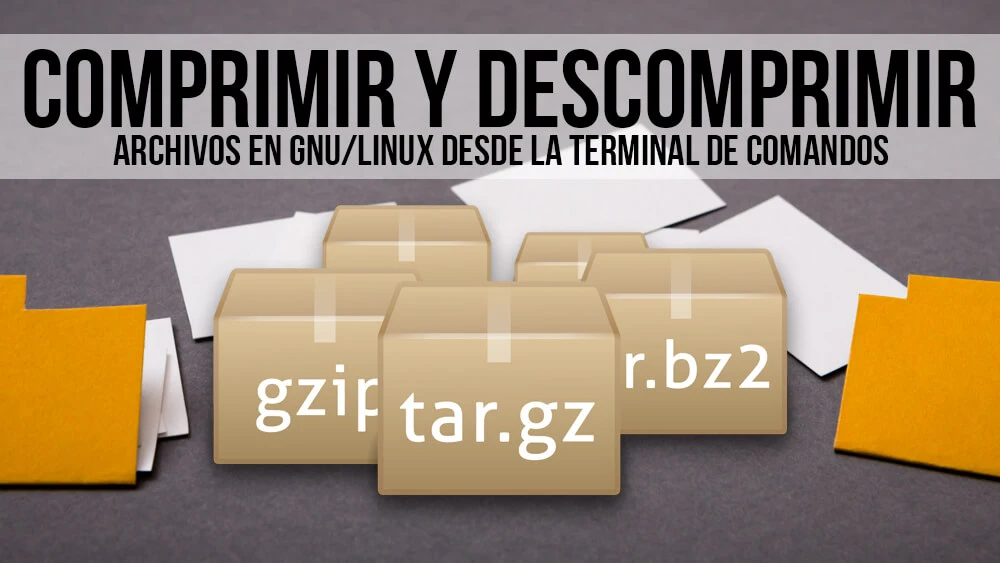
Los formatos de compresión reducen el tamaño en disco de los ficheros, lo cual es muy útil cuando se anda escaso de espacio en disco. También podemos “empaquetar” varios archivos juntos, por lo que se puede usar para enviar varios archivos a través de la red, a una memoria USB y ahorrarnos la labor de ir adjuntando los ficheros uno a uno, ademas de tiempo de transferencia.
Para poder comprimir y descomprimir algunos formatos propietarios y libres populares, es necesario instalar los siguientes paquetes:
$ sudo apt install unace sharutils arj unrar zip uudeview cabextract file-roller lzip lzma lzop xz bzip2 p7zip p7zip-plugins lbzip2 cpio file-roller unzip gzip unarj tar lha
App Installers in Debian
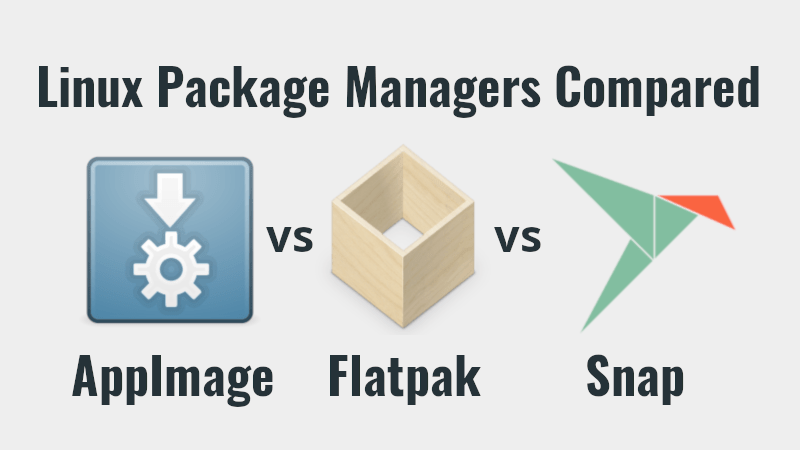
Flatpak es un sistema de distribución de software que permite instalar y ejecutar aplicaciones en diferentes distribuciones Linux. Es especialmente útil en Debian 12 para acceder a versiones más recientes de aplicaciones o aquellas no disponibles en los repositorios tradicionales.
Instalar Flatpak en Debian 12
$ sudo apt install flatpak
Añadir el repositorio de Flathub
$ flatpak remote-add --if-not-exists flathub https://flathub.org/repo/flathub.flatpakrepo
Snappy (Snap) es un sistema de empaquetado desarrollado por Canonical que permite instalar aplicaciones y sus dependencias en un entorno aislado. Es similar a Flatpak, pero diseñado principalmente para distribuciones basadas en Ubuntu. Aún así, puede instalarse en Debian 12 para acceder a aplicaciones distribuidas como snaps.
Instalar Snap en Debian 12
$ sudo apt install snapd
Habilitar el servicio Snap: Inicia y habilita el servicio para que se ejecute al iniciar el sistema:
$ sudo systemctl enable --now snapd.socket
Habilitar la integración clásica (opcional): Si necesitas usar aplicaciones Snap con la integración clásica:
$ sudo ln -s /var/lib/snapd/snap /snap
AppImage es un formato de distribución de aplicaciones que permite ejecutar software en cualquier distribución de Linux sin necesidad de instalación. Las aplicaciones en formato AppImage contienen todas sus dependencias, lo que las hace muy portables.
AppImage Deb y RPM Instalador: https://github.com/TheAssassin/AppImageLauncher/releases
$ wget https://github.com/TheAssassin/AppImageLauncher/releases/download/v2.2.0/appimagelauncher_2.2.0-travis995.0f91801.bionic_amd64.deb
$ sudo dpkg -i appimagelauncher*amd64.deb
Instalar el entorno básico de desarrollo
En Debian 12, puedes instalar y configurar herramientas de desarrollo para trabajar en diversos lenguajes y entornos. A continuación, te detallo las configuraciones básicas para un sistema de desarrollo funcional.
Debian ofrece un metapaquete llamado build-essential, que contiene herramientas comunes necesarias para compilar software.
This package includes:
gccandg++: Compiladores de C y C++.make: Herramienta de construcción.libc6-dev: Librerías estándar de desarrollo en C.
$ sudo apt-get install build-essential && sudo apt-get install linux-headers-`uname -r`
Instalar herramientas adicionales:
Git (control de versiones):
$ sudo apt install git
Autotools y CMake: Algunas aplicaciones usan sistemas de construcción específicos.
$ sudo apt install cmake automake autoconf
GNU Debugger (gdb):
$ sudo apt install gdb
Herramientas para compilar proyectos en Python:
$ sudo apt install python3-dev python3-pip

OpenJDK (Open Java Development Kit) es la implementación de referencia de Java de código abierto, desarrollada bajo la supervisión de Oracle y la comunidad. Es la opción predeterminada para Java en muchas distribuciones Linux, incluida Debian, y es totalmente compatible con la especificación de la plataforma Java.
$ sudo apt install default-jdk
Compiladores adicionales (Clang): Si prefieres usar Clang como alternativa a GCC:
$ sudo apt install clang
Instalar librerías comunes de desarrollo: Algunos programas requieren librerías adicionales para compilar correctamente.
Librerías de desarrollo estándar:
$ sudo apt install libssl-dev libz-dev libreadline-dev
Librerías gráficas (si el software requiere soporte gráfico):
$ sudo apt install libx11-dev libxext-dev libxft-dev libxinerama-dev libxrandr-dev
Librerías de soporte para sistemas más complejos:
$ sudo apt install libncurses-dev libbz2-dev liblzma-dev libxml2-dev
Cryptsetup: administrar y cifrar los datos volúmenes encriptados dm-crypt y LUKS sin formato.
Cryptsetup ofrece una forma sencilla de cifrar los datos de nuestras unidades externas de almacenamiento, que normalmente conectamos a través del puerto USB, protegiendo dichas unidades para que incluso si las perdemos los datos que almacenábamos no puedan ser descifrados por posibles curiosos y se usa para configurar convenientemente el dispositivo administrado dm-crypt-mapeos de mapeadores. Estos incluyen volúmenes simples de dm-crypt and LUKS volúmenes. La diferencia es que LUKS usa un encabezado de metadatos y por lo tanto, puede ofrecer más funciones que dm-crypt. En el otro mano, el cabezal es visible y vulnerable a daños. Además, cryptsetup proporciona soporte limitado para el uso de Volúmenes loop-AES, TrueCrypt, VeraCrypt y BitLocker compatibles volúmenes.
$ sudo apt install cryptsetup
Firewall in Debian
A firewall en Linux es una herramienta clave para controlar el tráfico de red y proteger tu sistema frente a accesos no autorizados. En Debian, puedes usar herramientas como iptables, nftables (el estándar moderno), o interfaces amigables como ufw para gestionar las reglas del firewall.
Wear UFW (Fácil de configurar)
// Instalar UFW:
$ sudo apt install ufw
// Habilitar UFW
$ sudo ufw enable
// Deshabilitar UFW:
$ sudo ufw disable
TLP (Linux Advanced Power Management) Ahorre energía de la batería en las computadoras portátiles:
TLP le ofrece los beneficios de la administración avanzada de energía para Linux sin la necesidad de comprender cada detalle técnico. TLP viene con una configuración predeterminada ya optimizada para la duración de la batería, por lo que puede instalarlo y olvidarlo.
TLP es una gran utilidad para ayudar a optimizar la batería de su computadora portátil. Esta utilidad viene con varias opciones de línea de comandos para ajustar y ver informes sobre el consumo de energía.
// tlp: herramienta avanzada de administración de energía para Linux
// tlp-rdw: Asistente para dispositivos de radio para TLP
$ sudo apt install tlp tlp-rdw
Comprobar y use el comando de terminal tlp-stat para verificar si TLP está funcionando correctamente:
$ sudo tlp start
TLP started in battery mode (auto).
Y compruebe la salida log o traza para comprobar que TLP esta trabajando en el ahorro de batería de la computadora portatil:
$ sudo tlp-stat -s
Conclusion
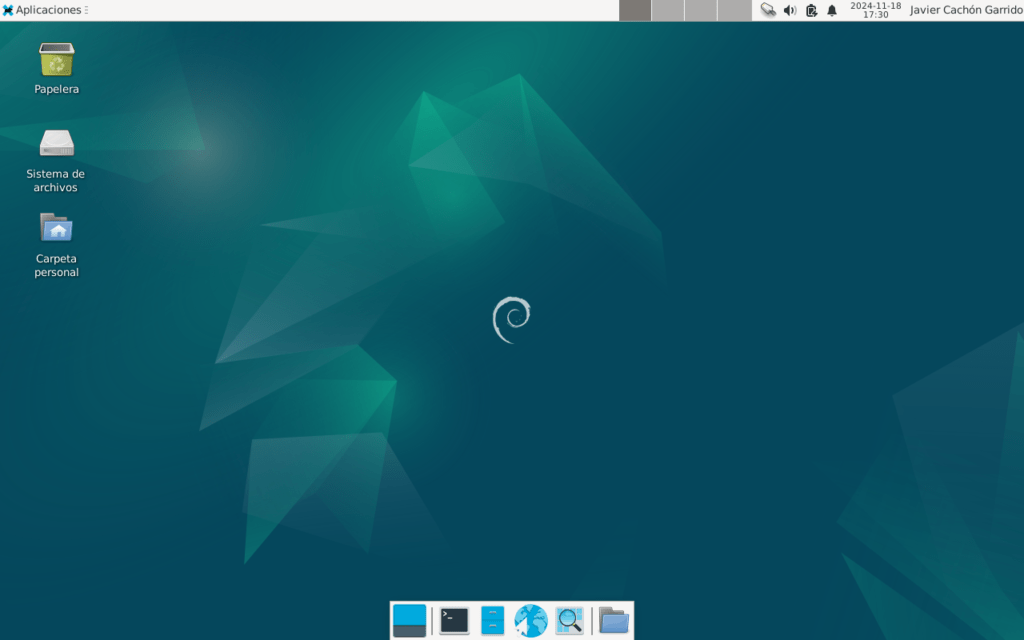
¡Felicidades por completar la configuración y puesta a punto de tu Debian 12! 🚀 Ahora tienes un sistema optimizado y listo para tus necesidades que hiremos perfeccionando y aumentando con más articulos técnicos.

Descubre más desde javiercachon.com
Subscribe to get the latest posts sent to your email.